GCP Workload Identity Federation
Identity Federation lets an attached VM mint short-lived exe.dev OIDC tokens. A Google Cloud Workload Identity Pool is a container for identities from external systems. An OIDC provider inside the pool tells Google Cloud which issuer's tokens to trust. For exe.dev, configure the provider to trust the exact generated user/team-scoped issuer. Google Cloud then exchanges accepted tokens for access to a service account. Use this instead of storing Google Cloud service account keys on the VM.
Create the exe.dev integration from the exe.dev CLI or the web UI. Run the
Google Cloud commands from any machine with gcloud.
Setup
Set values
Choose a Google Cloud project and pool ID once. The pool contains the OIDC providers that trust user/team-scoped exe.dev issuers:
export PROJECT_ID=example-gcp-project
export POOL_ID=exe-dev-pool

export PROJECT_NUMBER="$(gcloud projects describe "$PROJECT_ID" --format='value(projectNumber)')"
export GCP_POOL_RESOURCE="projects/${PROJECT_NUMBER}/locations/global/workloadIdentityPools/${POOL_ID}"
Choose a provider ID for this user/team-scoped issuer. Provider IDs must be unique within the pool. The provider resource identifies the provider inside the pool, and the provider audience is the Google IAM URL for that resource:
export PROVIDER_ID=exe-dev-example-team

export GCP_PROVIDER_RESOURCE="${GCP_POOL_RESOURCE}/providers/${PROVIDER_ID}"
export GCP_PROVIDER_AUDIENCE="https://iam.googleapis.com/${GCP_PROVIDER_RESOURCE}"
Per-service-account and per-exe.dev-integration values. Choose these for each workload:
export INTEGRATION_NAME=gcpwif
export SERVICE_ACCOUNT_NAME=exe-dev-demo

export SERVICE_ACCOUNT_EMAIL="${SERVICE_ACCOUNT_NAME}@${PROJECT_ID}.iam.gserviceaccount.com"
Nothing above depends on Google Cloud or exe.dev state yet. GCP_PROVIDER_AUDIENCE
is derived entirely from values you just picked, which is what lets you create
the exe.dev integration first and the Google Cloud provider second.
Add the exe.dev integration
One command creates the integration and attaches it. The five --metadata
values are the Google Cloud identifiers the VM reads back from /metadata
later.
Run it from the same shell that holds the values from above, so they expand
before reaching exe.dev — the lobby is a command interface, not a shell, and
passes ${...} through untouched:
ssh exe.dev "integrations add wif --name=${INTEGRATION_NAME} \
  --audience=${GCP_PROVIDER_AUDIENCE} \
  --consumer=gcp \
  --metadata=project_id=${PROJECT_ID} \
  --metadata=project_number=${PROJECT_NUMBER} \
  --metadata=pool_id=${POOL_ID} \
  --metadata=provider_id=${PROVIDER_ID} \
  --metadata=service_account=${SERVICE_ACCOUNT_EMAIL} \
  --attach=vm:example-vm"
Use --attach=tag:<tag-name> to cover every VM with a tag, and add --team for
a team integration. The subject is generated for you.
It echoes back what it created:
Added integration gcpwif

Give these to your cloud provider:
  Issuer:   https://exe.dev/issuer/example-team-workload
  Subject:  sub-ABCDEFGHIJKLMNOPQRSTUVWXYZ
  Audience: https://iam.googleapis.com/projects/123456789012/locations/global/workloadIdentityPools/exe-dev-pool/providers/exe-dev-example-team
Read those two values back into the shell you will run the Google Cloud commands from. This works at any time, not just right after the add:
INTEGRATION_JSON="$(ssh exe.dev 'integrations list --json')"

export EXE_WIF_ISSUER="$(printf '%s' "$INTEGRATION_JSON" |
  jq -r --arg n "$INTEGRATION_NAME" '.[] | select(.name==$n) | "https://exe.dev/issuer/\(.config.issuer_id)"')"
export EXE_WIF_SUBJECT="$(printf '%s' "$INTEGRATION_JSON" |
  jq -r --arg n "$INTEGRATION_NAME" '.[] | select(.name==$n) | .config.subject')"

echo "$EXE_WIF_ISSUER"
echo "$EXE_WIF_SUBJECT"
Open the Integrations page, choose Identity Federation, and
select GCP.
Name: theINTEGRATION_NAMEvalue from aboveProject ID: thePROJECT_IDvalue from aboveProject number: thePROJECT_NUMBERvalue from abovePool ID: thePOOL_IDvalue from aboveProvider ID: thePROVIDER_IDvalue from aboveService account: theSERVICE_ACCOUNT_EMAILvalue from aboveAttach to: the VM or tag that should use this service account
Copy the generated user/team-scoped Issuer URL and Subject, then click
Run. The Google Cloud provider and IAM binding below must use those exact
values.
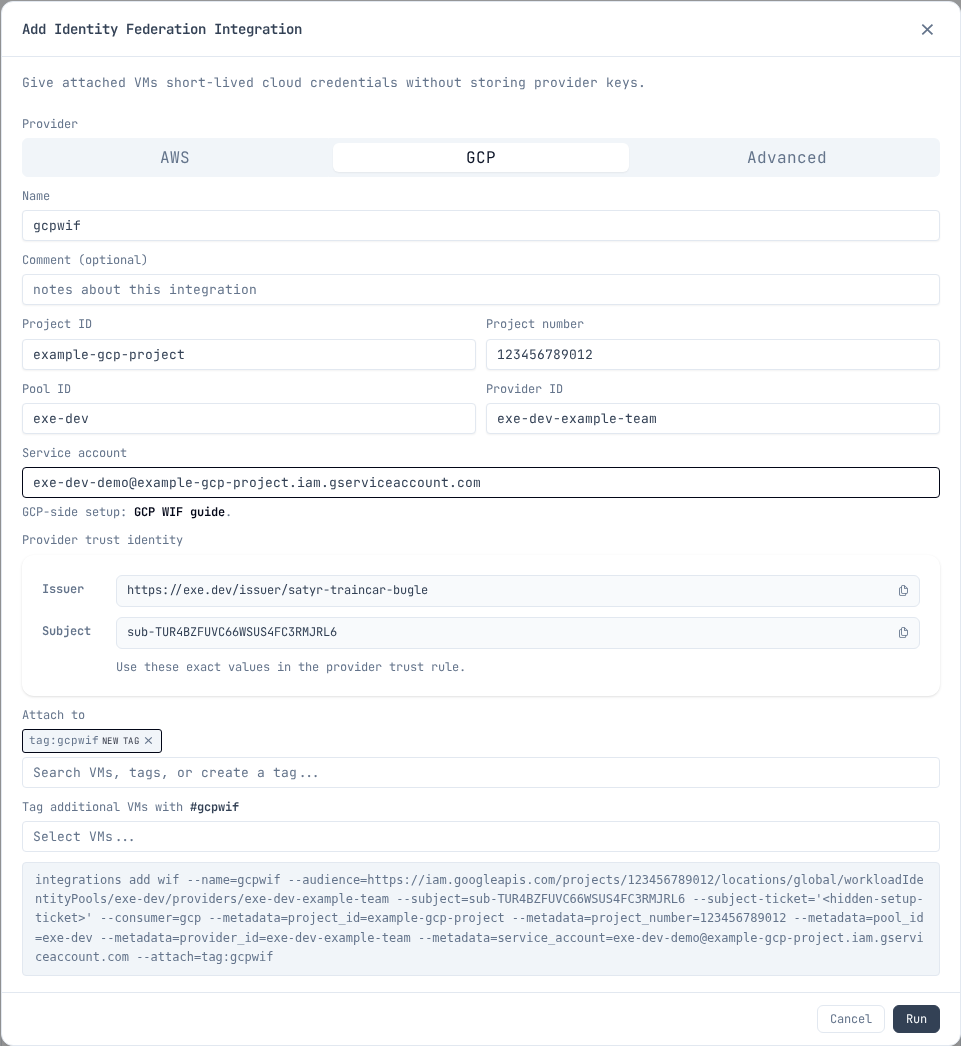
Set the copied values in your shell before running the Google Cloud commands. Copy the issuer URL exactly; do not derive it from the Google Cloud pool or provider IDs. Replace these examples with the generated user/team-scoped issuer URL and subject from the integration:
export EXE_WIF_ISSUER=https://exe.dev/issuer/example-team-workload
export EXE_WIF_SUBJECT=sub-ABCDEFGHIJKLMNOPQRSTUVWXYZ
Configure Google Cloud
gcloud services enable \
  iam.googleapis.com \
  sts.googleapis.com \
  iamcredentials.googleapis.com \
  cloudresourcemanager.googleapis.com \
  --project "$PROJECT_ID"

gcloud iam workload-identity-pools create "$POOL_ID" \
  --project "$PROJECT_ID" \
  --location global \
  --display-name "exe.dev"

gcloud iam workload-identity-pools providers create-oidc "$PROVIDER_ID" \
  --project "$PROJECT_ID" \
  --location global \
  --workload-identity-pool "$POOL_ID" \
  --display-name "exe.dev" \
  --issuer-uri "$EXE_WIF_ISSUER" \
  --allowed-audiences "$GCP_PROVIDER_AUDIENCE" \
  --attribute-mapping "google.subject=assertion.sub"

gcloud iam service-accounts create "$SERVICE_ACCOUNT_NAME" \
  --project "$PROJECT_ID" \
  --display-name "exe.dev demo workload"

gcloud iam service-accounts add-iam-policy-binding "$SERVICE_ACCOUNT_EMAIL" \
  --project "$PROJECT_ID" \
  --role "roles/iam.workloadIdentityUser" \
  --member "principal://iam.googleapis.com/${GCP_POOL_RESOURCE}/subject/${EXE_WIF_SUBJECT}"
These four APIs cover federation itself. Each use case below also needs its own API enabled and its own role granted — see Use cases.
Use it from the VM
Install gcloud on the VM
exeuntu ships Docker but not the Google Cloud CLI. Install it once per VM; the
package also provides docker-credential-gcloud, which is what makes
gcloud auth configure-docker work.
curl -fsSL https://packages.cloud.google.com/apt/doc/apt-key.gpg |
  sudo gpg --dearmor -o /usr/share/keyrings/cloud.google.gpg
echo "deb [signed-by=/usr/share/keyrings/cloud.google.gpg] https://packages.cloud.google.com/apt cloud-sdk main" |
  sudo tee /etc/apt/sources.list.d/google-cloud-sdk.list
sudo apt-get update
sudo DEBIAN_FRONTEND=noninteractive apt-get install -y google-cloud-cli
Create the credential config
Run this on the VM the integration is attached to.
The integration answers on its own hostname, <name>.int.exe.xyz, reachable
only from the VMs it is attached to. GET /metadata there returns the Google
Cloud values you gave when you created the integration — project, project
number, pool, provider, and service account. Read them from there instead of
retyping them, so the VM cannot drift out of sync with the integration.
export INTEGRATION_NAME=gcpwif

export EXE_WIF_URL="https://${INTEGRATION_NAME}.int.exe.xyz"
export EXE_WIF_METADATA_FILE="/tmp/exe-${INTEGRATION_NAME}-gcp-wif-metadata.json"
export GOOGLE_APPLICATION_CREDENTIALS="$HOME/.config/gcloud/exe-${INTEGRATION_NAME}-gcp-wif.json"

mkdir -p "$(dirname "$GOOGLE_APPLICATION_CREDENTIALS")"
curl -fsS "$EXE_WIF_URL/metadata" > "$EXE_WIF_METADATA_FILE"
For a team integration, use https://${INTEGRATION_NAME}.team.exe.xyz for
EXE_WIF_URL instead.
export PROJECT_NUMBER="$(jq -r .project_number "$EXE_WIF_METADATA_FILE")"
export POOL_ID="$(jq -r .pool_id "$EXE_WIF_METADATA_FILE")"
export PROVIDER_ID="$(jq -r .provider_id "$EXE_WIF_METADATA_FILE")"
export SERVICE_ACCOUNT_EMAIL="$(jq -r .service_account "$EXE_WIF_METADATA_FILE")"
export GCP_PROVIDER_RESOURCE="projects/${PROJECT_NUMBER}/locations/global/workloadIdentityPools/${POOL_ID}/providers/${PROVIDER_ID}"

gcloud iam workload-identity-pools create-cred-config "$GCP_PROVIDER_RESOURCE" \
  --service-account "$SERVICE_ACCOUNT_EMAIL" \
  --credential-source-url "$EXE_WIF_URL/token" \
  --credential-source-type json \
  --credential-source-field-name token \
  --output-file "$GOOGLE_APPLICATION_CREDENTIALS"

gcloud auth login --cred-file="$GOOGLE_APPLICATION_CREDENTIALS"
Smoke-test:
gcloud auth print-access-token >/dev/null &&
  echo "GCP Workload Identity Federation is working"
For client libraries, keep GOOGLE_APPLICATION_CREDENTIALS in the workload
environment. The credential config tells Google auth libraries and gcloud to
fetch fresh exe.dev tokens from GET /token; no local service account key or
exe.dev token file is needed. gcloud itself does not need the variable after
gcloud auth login --cred-file, which stores the configuration.
Setting a default project is convenient but optional:
gcloud config set project "$PROJECT_ID"
If the service account has only resource-scoped roles it cannot read the project
resource, so this prints a does not have permission to access projects instance
warning. The property is still set and everything below still works. Granting a
project-level role purely to silence the warning is the wrong trade.
Troubleshooting: isolate the exchange
If something fails, check the token exchange on its own before suspecting
gcloud, Docker, or a client library. Getting an access_token back proves the
pool, provider, issuer, audience, and subject mapping are all correct:
AUD="//iam.googleapis.com/projects/${PROJECT_NUMBER}/locations/global/workloadIdentityPools/${POOL_ID}/providers/${PROVIDER_ID}"
TOK="$(curl -fsS "$EXE_WIF_URL/token" | jq -r .token)"
curl -sS -X POST https://sts.googleapis.com/v1/token \
  -H "Content-Type: application/json" \
  -d "{\"audience\":\"$AUD\",
       \"grantType\":\"urn:ietf:params:oauth:grant-type:token-exchange\",
       \"requestedTokenType\":\"urn:ietf:params:oauth:token-type:access_token\",
       \"scope\":\"https://www.googleapis.com/auth/cloud-platform\",
       \"subjectTokenType\":\"urn:ietf:params:oauth:token-type:jwt\",
       \"subjectToken\":\"$TOK\"}"
Note that the STS audience uses the //iam.googleapis.com/... form with no
scheme, while the provider's --allowed-audiences uses https://.
A 403 from GET /token means the integration is not attached to this VM.
Use cases
Common things to run from the VM once the federated credentials are active. Each use case needs its own API enabled and its own role granted; the federation setup above does not imply either. Grant the service account only the roles that use case needs.
Run the gcloud services enable and add-iam-policy-binding commands as an
administrator, not from the VM.
Cloud Storage: artifacts and data
Sync build outputs, datasets, or static sites to a bucket:
gcloud storage rsync --recursive ./dist "gs://${BUCKET_NAME}/"
Enable and grant, scoped to the one bucket:
gcloud services enable storage.googleapis.com --project "$PROJECT_ID"

gcloud storage buckets add-iam-policy-binding "gs://${BUCKET_NAME}" \
  --member "serviceAccount:${SERVICE_ACCOUNT_EMAIL}" \
  --role "roles/storage.objectAdmin"
Use roles/storage.objectViewer for read-only workloads.
Artifact Registry: containers and packages
Push container images, or publish to private npm, pip, or Maven repositories in the same registry:
gcloud auth configure-docker "${REGION}-docker.pkg.dev"
docker push "${REGION}-docker.pkg.dev/${PROJECT_ID}/${REPO}/${IMAGE}:${TAG}"
Enable and grant, scoped to the one repository:
gcloud services enable artifactregistry.googleapis.com --project "$PROJECT_ID"

gcloud artifacts repositories add-iam-policy-binding "$REPO" \
  --project "$PROJECT_ID" \
  --location "$REGION" \
  --member "serviceAccount:${SERVICE_ACCOUNT_EMAIL}" \
  --role "roles/artifactregistry.writer"
roles/artifactregistry.writer covers both push and pull; there is no separate
reader grant to add. Use roles/artifactregistry.reader for a pull-only VM.
BigQuery: queries and data jobs
Run queries and load jobs, or run dbt: its BigQuery oauth method uses
application default credentials, which the WIF credential file provides.
bq query --use_legacy_sql=false "SELECT COUNT(*) FROM \`${PROJECT_ID}.${DATASET}.${TABLE}\`"
Running a job is a project-level permission; reading the data is not. Grant both:
gcloud services enable bigquery.googleapis.com --project "$PROJECT_ID"

gcloud projects add-iam-policy-binding "$PROJECT_ID" \
  --member "serviceAccount:${SERVICE_ACCOUNT_EMAIL}" \
  --role "roles/bigquery.jobUser"
Then grant data access on the one dataset by editing its access list. (Dataset
bindings are not available through gcloud, and bq add-iam-policy-binding -d
requires allowlisting.)
bq show --format=prettyjson "${PROJECT_ID}:${DATASET}" > /tmp/dataset.json
jq --arg sa "$SERVICE_ACCOUNT_EMAIL" \
  '.access += [{"role":"READER","userByEmail":$sa}]' \
  /tmp/dataset.json > /tmp/dataset-updated.json
bq update --source /tmp/dataset-updated.json "${PROJECT_ID}:${DATASET}"
Use "role":"WRITER" for a workload that loads data.
Cloud SQL: databases via the Auth Proxy
The Cloud SQL Auth Proxy connects over the instance's public IP with IAM authorization and TLS; no authorized networks or VPC needed. Connect to localhost with your normal client or migration tool:
cloud-sql-proxy "${PROJECT_ID}:${REGION}:${INSTANCE}" &
psql "host=127.0.0.1 dbname=${DB_NAME} user=${DB_USER}"
Enable and grant:
gcloud services enable sqladmin.googleapis.com --project "$PROJECT_ID"

gcloud projects add-iam-policy-binding "$PROJECT_ID" \
  --member "serviceAccount:${SERVICE_ACCOUNT_EMAIL}" \
  --role "roles/cloudsql.client"
Add roles/cloudsql.instanceUser as well if you authenticate to the database
with IAM database authentication rather than a password.
Vertex AI: model inference
Call Gemini and other models with the federated credentials. Client libraries
pick up GOOGLE_APPLICATION_CREDENTIALS automatically:
curl -fsS -X POST \
  -H "Authorization: Bearer $(gcloud auth print-access-token)" \
  -H "Content-Type: application/json" \
  -d '{"contents":[{"role":"user","parts":[{"text":"Hello"}]}]}' \
  "https://${REGION}-aiplatform.googleapis.com/v1/projects/${PROJECT_ID}/locations/${REGION}/publishers/google/models/${MODEL}:generateContent"
Enable and grant:
gcloud services enable aiplatform.googleapis.com --project "$PROJECT_ID"

gcloud projects add-iam-policy-binding "$PROJECT_ID" \
  --member "serviceAccount:${SERVICE_ACCOUNT_EMAIL}" \
  --role "roles/aiplatform.user"
Terraform / IaC: state and deploys
Run terraform plan and terraform apply with the GCS state backend; the
google provider reads the same credential file via application default
credentials:
terraform init -backend-config="bucket=${STATE_BUCKET}"
terraform apply
Grant the state bucket, then whatever the configuration manages:
gcloud services enable storage.googleapis.com --project "$PROJECT_ID"

gcloud storage buckets add-iam-policy-binding "gs://${STATE_BUCKET}" \
  --member "serviceAccount:${SERVICE_ACCOUNT_EMAIL}" \
  --role "roles/storage.objectAdmin"
A configuration that creates resources also needs the APIs for those resources
enabled and the matching admin roles granted. Prefer resource-scoped or
folder-scoped bindings over roles/editor on the project.
Keep it narrow
- Use one exe.dev WIF integration per service account or workload.
- Attach the integration only to the VM or tag that needs it.
- Bind
roles/iam.workloadIdentityUserto the exact exe.dev subject. - Give the Google Cloud service account only the roles the workload needs.
- Do not create or store Google Cloud service account keys as a fallback.
Additional integrations owned by the same exe.dev user or team use the same user/team-scoped issuer. They can reuse the same OIDC provider when they use the same provider audience. A different exe.dev user or team has a different user/team-scoped issuer and needs its own provider, which can live in the same pool.
Google references: